---
title: "Apple Brand Location"
url: "https://flightdeck-help.resolutiondigital.com.au/en/article/apple-brand-location"
language: "en"
last_updated: "2025-01-28T06:09:12.343Z"
---
# Apple Brand Location
Add/Edit/Delete the location details of your Apple Brands(Business)
## **How to get to Apple Brand Location?**
| 1\. Go to **Reports** from Side navigation Menu |  |
| --- | --- |
| 2\. Click on **Apple Business** | |
| 3\. Click on **Apple Location List** | |
At first, you will not be Authorized to access the Apple location APIs to add/edit the location details.

> **You need to contact Flightdeck Administrator in order to get authorized to access the Apple Brands and Apple Brand Location APIs.**
After getting authorized to access the Apple Brand and Apple Location module from the Flightdeck Admin; you will be landed in Apple Location List Page.

Here, you will be able to Add, Edit, Delete the Apple Brand Location details.
> Firstly, you need to create Brands in order to add locations for that Brand. If not go to [Apple Brands](https://flightdeck.productfruits.help/en/article/apple-brand) for creating the Brands.
* * *
### **1\. Add New Location**
1\. Click on **Add Location** button.

2\. In the drawer modal;
| a. Select the Brand from the drop down |  |
| --- | --- |
| b. Now, other fields will be enabled to add the details; |  |
| c. Enter the **Display Name**; which is displayed in the Apple maps.
d. Fill in all the mandatory fields. |  |
| e. Enter the Latitude and Longitude of the brand location.
f. In Coordinate Source select the required item; which is either Calculated one from the map or Manually placed. |  |
| g. Selected the Navigation method; either Driving or Walking |  |
| h. Click on Next button to progress to next step; now Location Details will be displayed |  |
| i. Select the Primary Category for the location from the drop down; you can search and select up to 5 Categories. |  |
| j. Select the Payment Methods your brand accept for that location. | |
| k. Select the Location Attributes from the drop down |  |
| l. Click on **Add Action Link** button; which is an optional field. | 
 |
| m. Click on **Add Url** button to add the URLs related to your brand location. |  |
| n. Click on **Next** button to progress further. |  |
| o. Enter your location details; location opening and closing time. |  |
| p. Click on **Submit** button to save the location details. | |
Now, the location has been created

* * *
### **2\. Edit Existing Brand Location**
1\. In the table grid, Click on **Edit** button alongside your Location Name.

2\. The drawer modal opens up;
3\. Make the required changes in Each step mention in the Brand Location creation above.
4\. Click on **Submit** button.
* * *
### **3\. Delete Brand Location**
1\. Click on **Delete** Button alongside the Brand Name.

2\. Click on Yes button

By doing this, the Brand Location will be deleted from both Flightdeck and Apple.
* * *
### **4\. Searching and Filtering Existing Brand Location**
#### **a. Searching**
1\. Brands Location can be searched by entering search-keywords in the Search bar and press Enter in the keyboard

2\. You can enter multiple keywords for searching purpose

#### **b. Filtering**
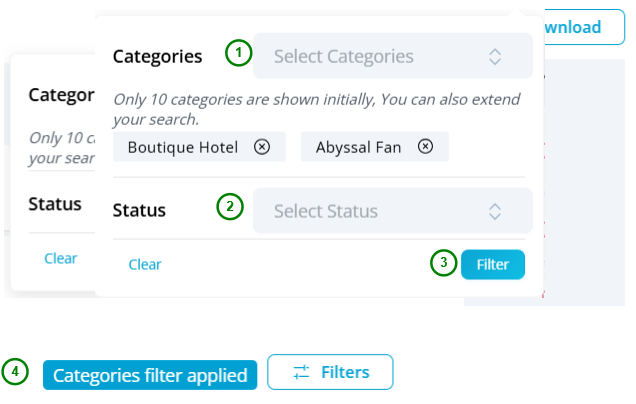
1\. You can perform filtering from Categories applied to brands location and the status of the brands.
2\. Click on **Filters** button
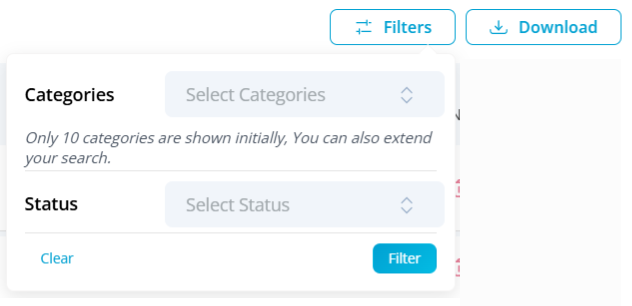
3\. Select the required filter items and click on **Filter** button.
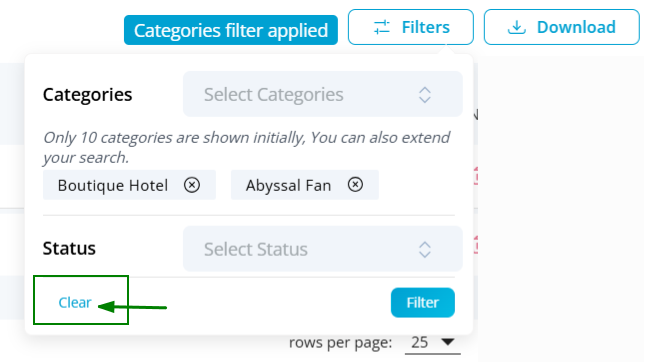
4\. Click on **Clear** button in the filter expansion to clear applied filters.
* * *
### **5\. Downloading Existing Brand Location report**
Click on Download button to download the Brand Location list.

* * *
Got to [Apple Brands](https://flightdeck-help.resolutiondigital.com.au/en/article/apple-brand)