---
title: "Brand and Brand Location Assets"
url: "https://flightdeck-help.resolutiondigital.com.au/en/article/brand-and-location-assets"
language: "en"
last_updated: "2025-07-08T06:32:42.672Z"
---
# Brand and Brand Location Assets
This allows uploading Brand Profile Picture and Brand Location Profile Picture
## **How to Add/Edit and Delete Brand Assets?**
### A. Adding Brand Assets during Brand Creation
Brands needs to be verified for the assets to be approved and published.
| 1\. Follow the Steps to create Brands from [here](https://flightdeck-help.resolutiondigital.com.au/en/article/apple-brand). | 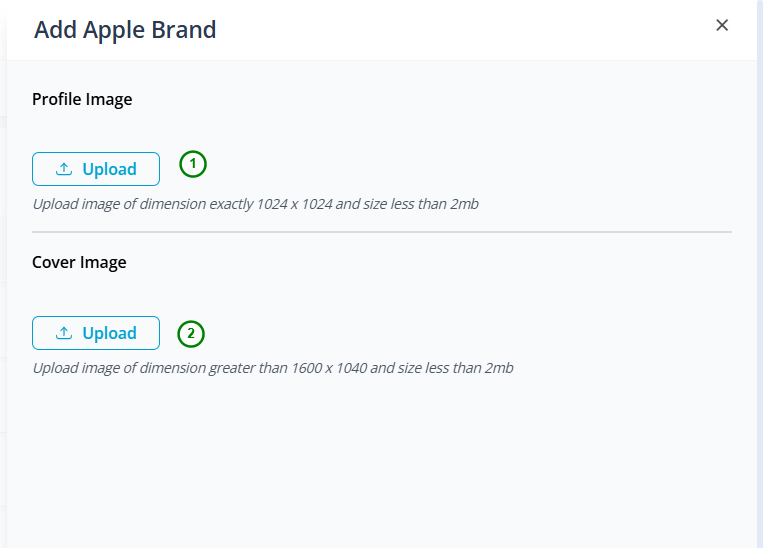 |
| --- | --- |
| 2\. After Filling up the Brand Details ; Click on Next Button
Click on Upload button in Profile Image/Cover Image to add Profile Image/Cover Image to your brand.
It is mandatory to have alt text for the image | |
| 3\. Now click on **Submit** button to Save the changes. | |
| *Please, the images dimensions needs to match perfectly for it to get approved and to be displayed in the Business Account.* |
| --- |
* * *
### B. Updating Brand Assets
| 1\. In the Brand List Page;
Click on Edit Icon |  |
| --- | --- |
| 2\. Click on Next button to land in section to Add Profile Image and Cover Image | 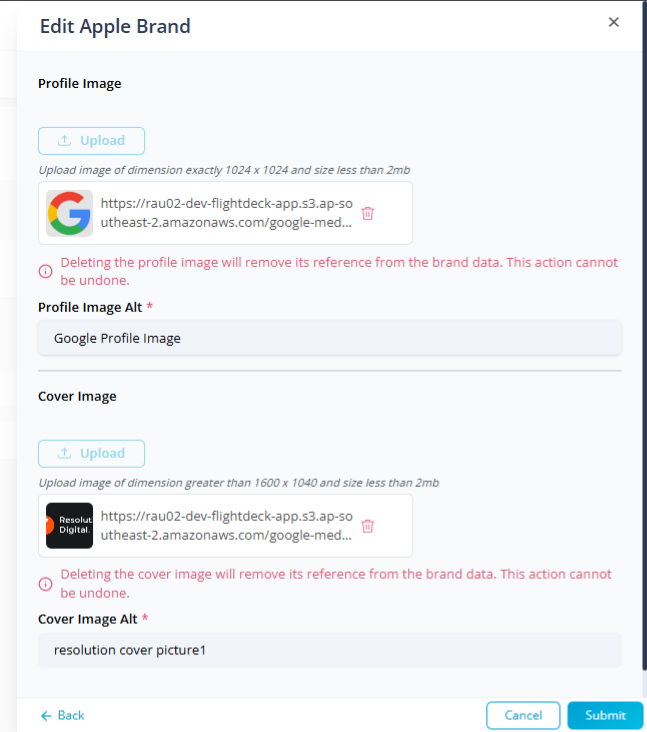 |
| 3\. Now you can either
a. Delete Previous Image and Upload New Image
b. Delete Previous Images
c. Update Alt text for the Images | |
| 4\. Now Click on **Submit** button to save the changes. | |
* * *
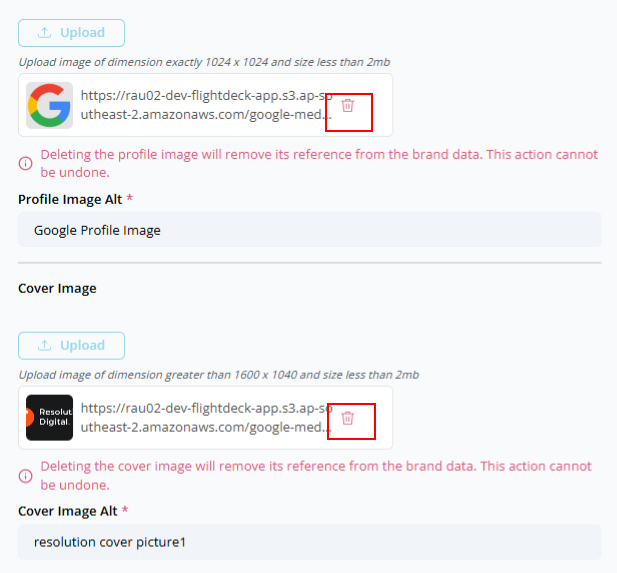
C. Deleting Assets
Clicking on Delete Icon beside the brand assets will immediately delete the Assets from Apple Account.
* * *
## **How to Add/Edit and Delete Location Assets?**
A. Add/Edit Location Assets
The location needs to be created first in order to add location assets. To create location follow the steps [here](https://flightdeck-help.resolutiondigital.com.au/en/article/apple-brand-location).
The location needs to be verified for the assets to be reflected in the Apple maps.
| 1\. In Location List Page;
Click on **Upload Location Assets** button. | 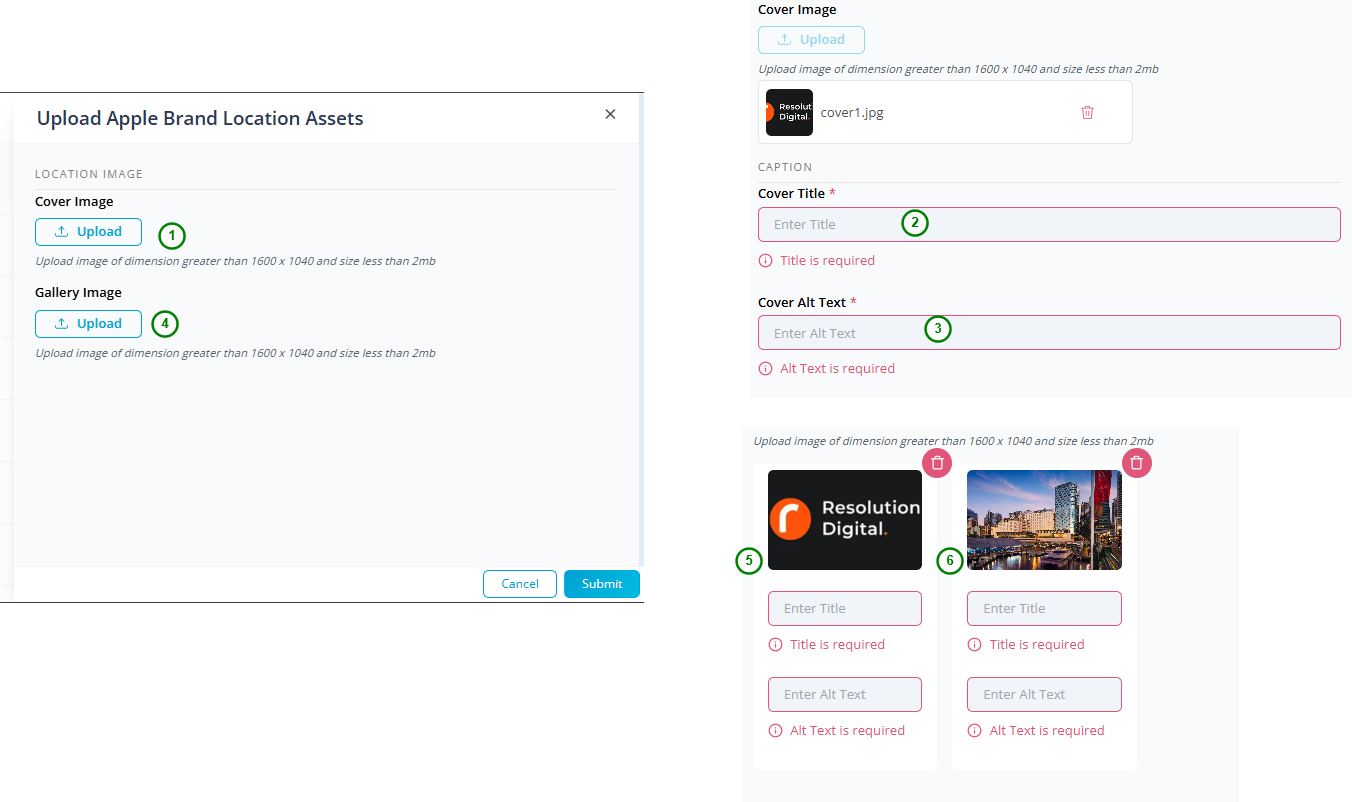 |
| --- | --- |
| 2\. Click on **Upload** button on Cover Image to add cover image.
Image's Caption is mandatory; so need to add appropriate Title and alt text.
Only, a single image is allowed for Cover Image. | |
| 3\. Click on **Upload** button on Gallery Image to add Gallery Image.
Gallery Image's captions are mandatory; so need to add appropriate Title and alt text.
Multiple, images are allowed for Gallery Images. | |
| 4\. Now, Click on **Submit** button to make the changes. | |
| *You can always, add new images to the gallery, or Edit the Images Caption or update Cover Image of the location.*
*Please, Images dimensions needs to match properly in Apple's end to get the images verified and published.* |
| --- |
* * *
B. Deleting Assets
Clicking on Delete Icon beside the Location assets will immediately delete the Assets from Apple Location.