
User Manual of Flightdeck Request Management
Flightdeck Request Management
Using Jira Service Management (JSM)
Overview
To bring more structure, visibility, and efficiency to how we handle requests across teams, we use Jira Service Management (JSM) within Flightdeck.
JSM serves as a centralized request management system in which all queries, tasks, and issues are submitted, tracked, and resolved consistently.
Instead of relying on emails, chats, or informal follow-ups, everything is managed through one platform—making it easier for both requestors and the support team to stay aligned.
Why This Matters
In a fast-moving environment like SEO and digital operations, requests often come in from multiple directions. Without a structured system, this can lead to:
- Missed or delayed requests
- Lack of clarity on ownership
- Duplicate work
- Difficulty tracking progress
By using JSM, we ensure that:
- Every request is logged and acknowledged
- The right team members are automatically notified
- Work is assigned and tracked properly
- You have clear visibility from submission to resolution
How to Access the Portal
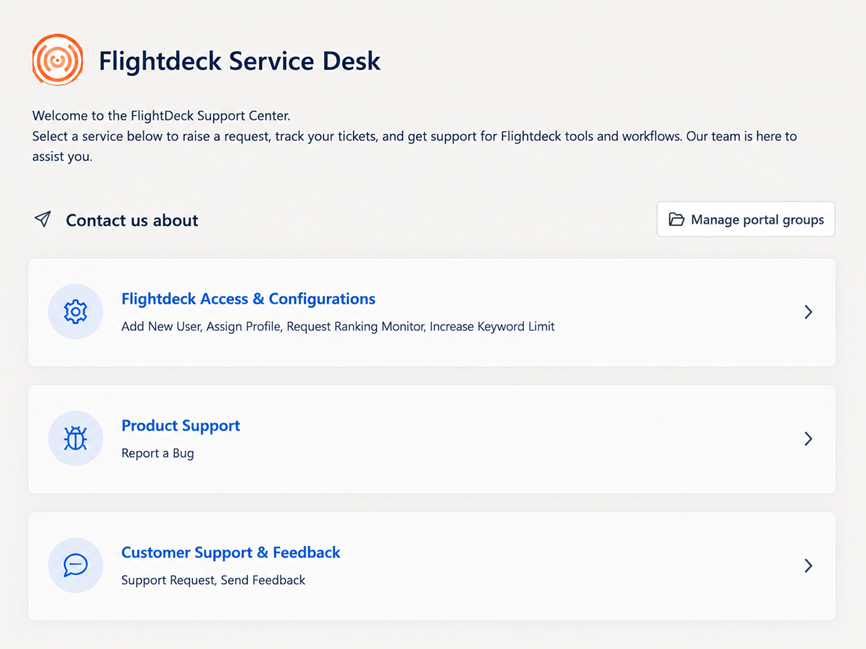
When you open the Flightdeck request portal, you’ll see requests grouped into three main sections. These are designed to help you quickly choose the right type of request.
Flightdeck Service Desk - Jira Service Management
Portal Sections Explained
1. Flightdeck Access & Configurations
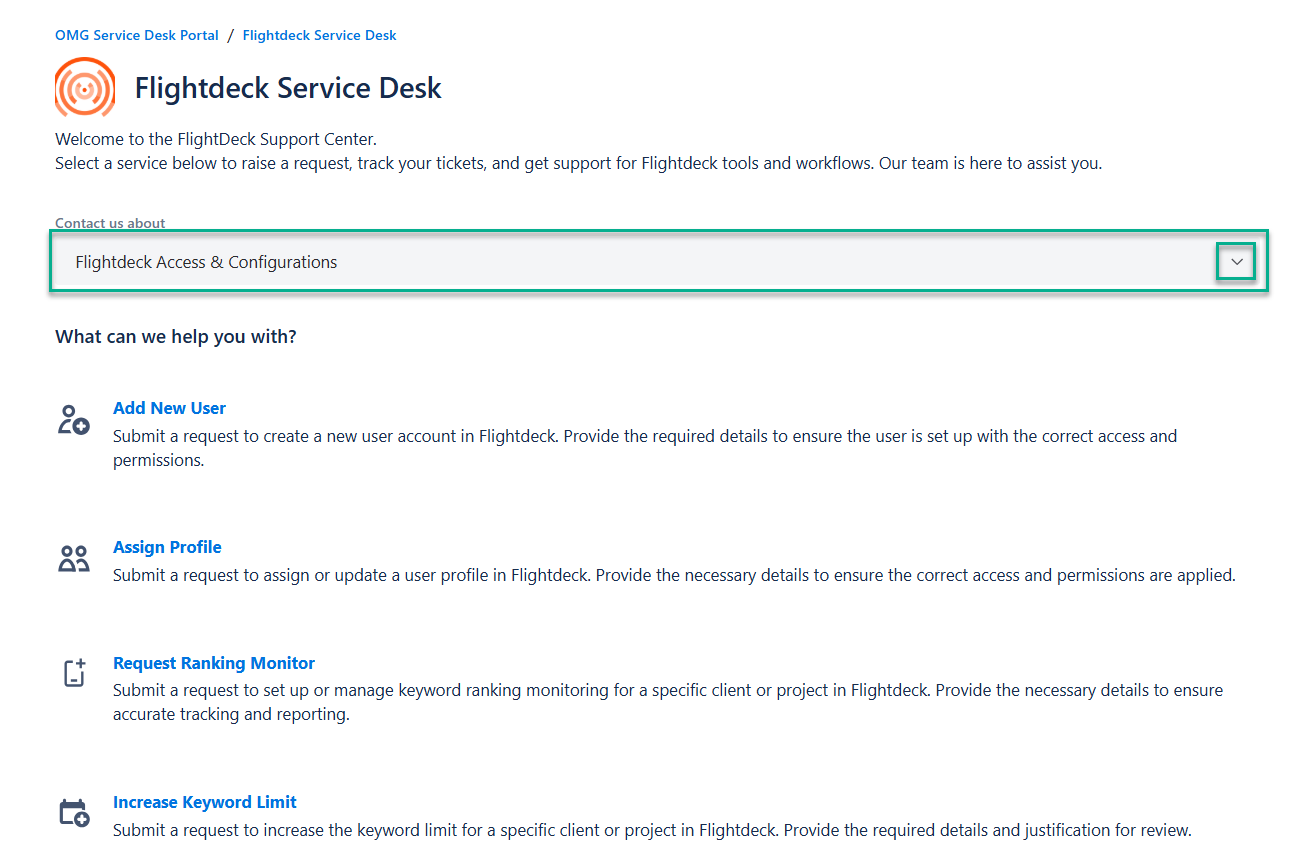
This section is used for setup, access, and configuration-related requests.
You’ll find:
- Add New User → Request access for new team members
- Assign Profile → Set or update user roles/permissions
- Request Ranking Monitor → Set up ranking tracking
- Increase Keyword Limit → Expand keyword tracking capacity
Use this section whenever you need to configure or enable something in Flightdeck
2. Product Support
This section is focused on technical issues within the platform.
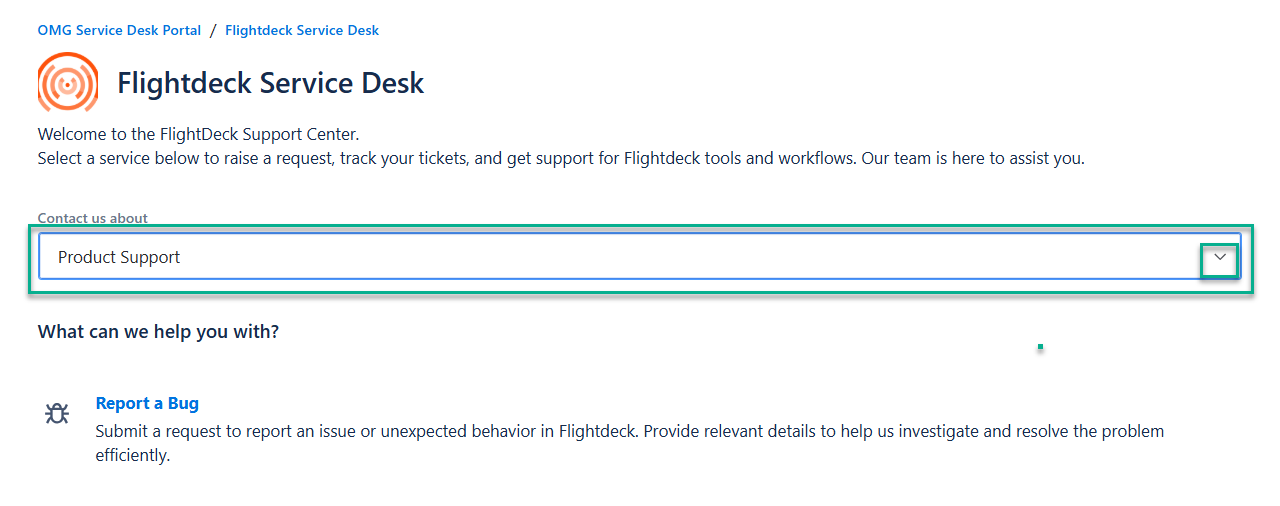
You’ll find:
- Report a Bug → Raise issues when something is not working as expected
Use this when you experience:
- Errors
- Broken features
- Unexpected behavior
3. Customer Support & Feedback
This section is for general communication and support needs.
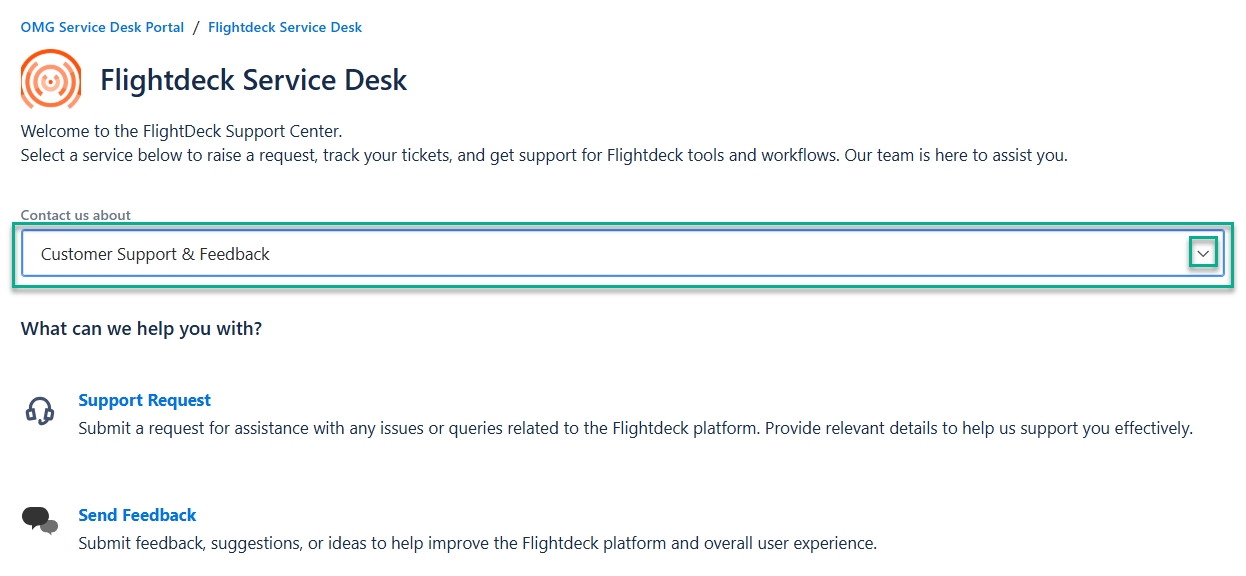
You’ll find:
- Support Request → For general help or queries
- Send Feedback → Share suggestions or improvements
Use this when:
- You’re unsure which category fits
- You need help or clarification
- You want to suggest improvements
How the Process Works
1. Submitting a Request
You start by selecting the relevant request type in the Flightdeck portal. Each request type is designed to capture the specific information needed, so providing accurate details at this stage helps speed up processing.
2. Automatic Ticket Creation
Once submitted:
- A ticket is automatically created in the system
- A unique reference ID (e.g., SUPPORT-123) is generated
- You receive a confirmation email
At the same time, the request is routed to the appropriate team or person.
3. Assignment & Internal Handling
Behind the scenes:
- The request is automatically assigned based on its type
- Relevant team members (including managers, where applicable) are notified
- The request is queued and prioritized accordingly
This ensures that even if someone is unavailable, the request is still visible and actionable by the team.
4. Review & Action
The support team will:
- Review of the submitted details
- Take the required action
- Reach out if clarification or additional input is needed
For certain requests (like bugs), prioritization may be applied based on urgency or impact.
5. Ongoing Updates
You will receive email updates when:
- The request is being worked on
- Additional information is required
- There is progress or a status change
This keeps you informed without requiring manual follow-up.
6. Resolution & Closure
Once the request is completed:
- You’ll receive a final update
- The ticket is marked as resolved
- Any relevant outcome or action taken is communicated
Communication & Notifications
The system is designed to ensure clear and timely communication:
- Confirmation when your request is received
- Internal visibility across the support team
- Automatic updates as progress is made
- Inclusion of key stakeholders where needed
This reduces dependency on individual availability and improves continuity.
Best Practices for Raising Requests
To help us support you efficiently, we recommend:
- Selecting the most relevant request type
- Providing clear and complete information
- Avoiding duplicate submissions for the same request
- Using one request per task or issue
Note: Well-detailed requests are typically resolved faster.